The Performance map in OrbiSCADA gives a visual year overview of how a selected controller has performed.
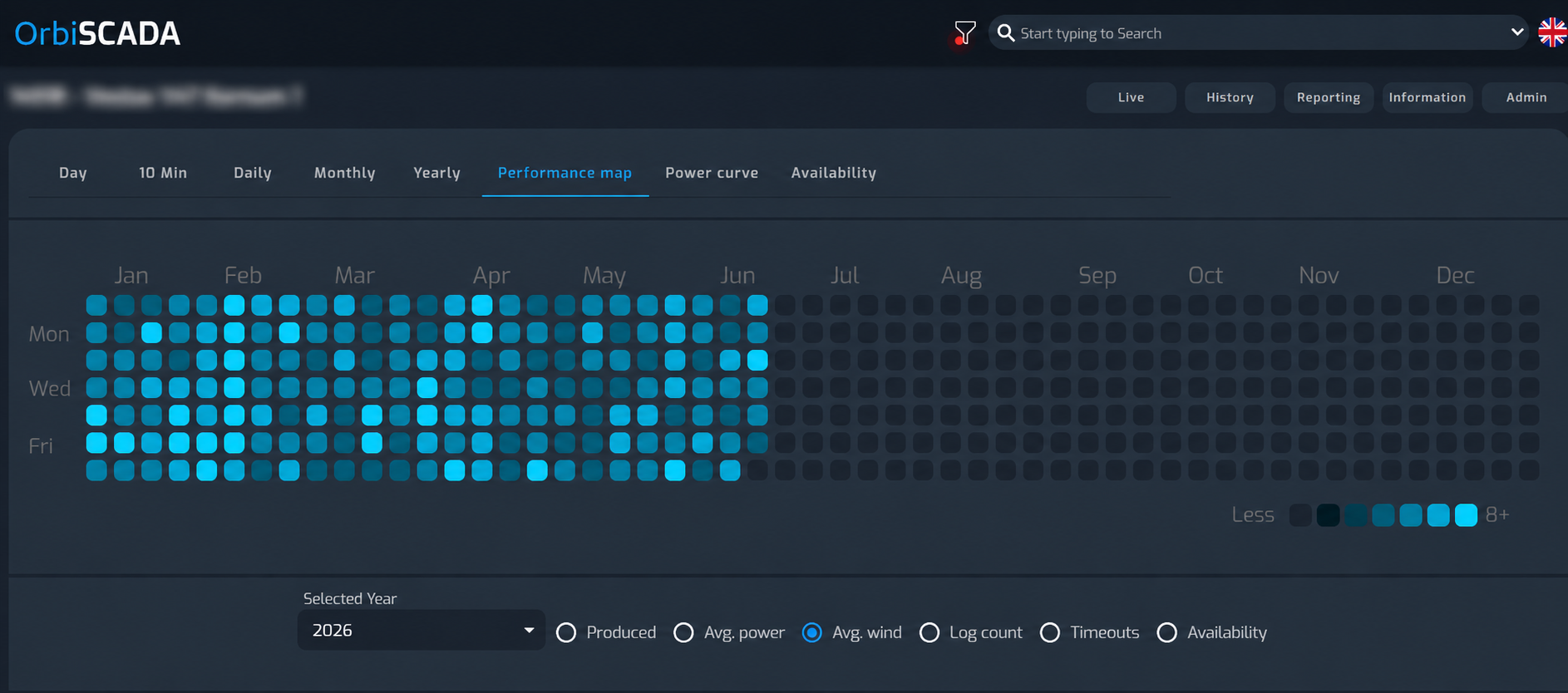
Where to find the Performance map
- Log in to OrbiSCADA
- Open the controller you want to review
- Select the History tab
- Select Performance map
Note: if the performance map tab is not shown, your user may not have the required permission for the selected controller.
Default view
By default, the Performance map shows the current year and avg. power. Each square represents one day. The color of the square shows the value for the selected metric on that day.
This makes it possible to get a quick overview of controller performance across weeks, months and the full year.
Select another year
Use the Selected Year dropdown to choose another available year. Only years with available data for the selected controller are shown in the dropdown.
Select a metric
Use the metric options below the map to change what the Performance map shows. Available metrics may include:
- Produced
- Avg. power
- Avg. wind
- Log count
- Timeouts
- Availability
Selecting a different metric updates the map so the colors represent that specific value.
Understand the colors
The colors show value ranges for the selected metric. The scale is shown in the legend below the map. The meaning of each color depends on the selected metric. Hover over the legend to see the value range for each color.
Dark or empty-looking squares may indicate no data, future dates or values outside the active range, depending on the selected metric and year.
View values for a specific day
Hover over a day in the map to see the value for that specific date. This is useful when you want to check exactly which day had an unusual value, for example a high number of timeouts, very low availability or unusually high production.
What to use the Performance map for
The Performance map is useful for identifying patterns and outliers across a year. Examples:
- Find days with unusually low average power
- Spot periods with repeated timeouts
- Compare availability across months
- Identify very good or very poor production days
- Check whether performance changed after service work or configuration changes
- Review seasonal patterns in wind, production or availability
Was this article helpful?
That’s Great!
Thank you for your feedback
Sorry! We couldn't be helpful
Thank you for your feedback
Feedback sent
We appreciate your effort and will try to fix the article