Remote access to the terminal is available in OrbiSCADA when supported by the controller type, the required optical interface/service cable is connected and the logged-in user has the necessary permissions. If these conditions are met, the terminal can be accessed from the Live tab as a dedicated section.
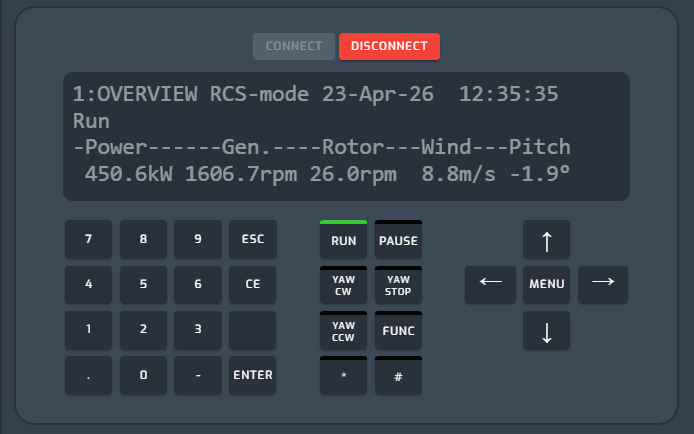
How the terminal view works
The remote terminal in OrbiSCADA functions as a direct mirror of the physical terminal interface on site. This means that the display shown after clicking Connect reflects exactly what is currently visible on the actual terminal. No separate interface or simulation is used, any interaction or navigation is performed directly on the live system.
Delays when clicking Connect
Connecting to the terminal through OrbiSCADA requires clicking the green Connect button.
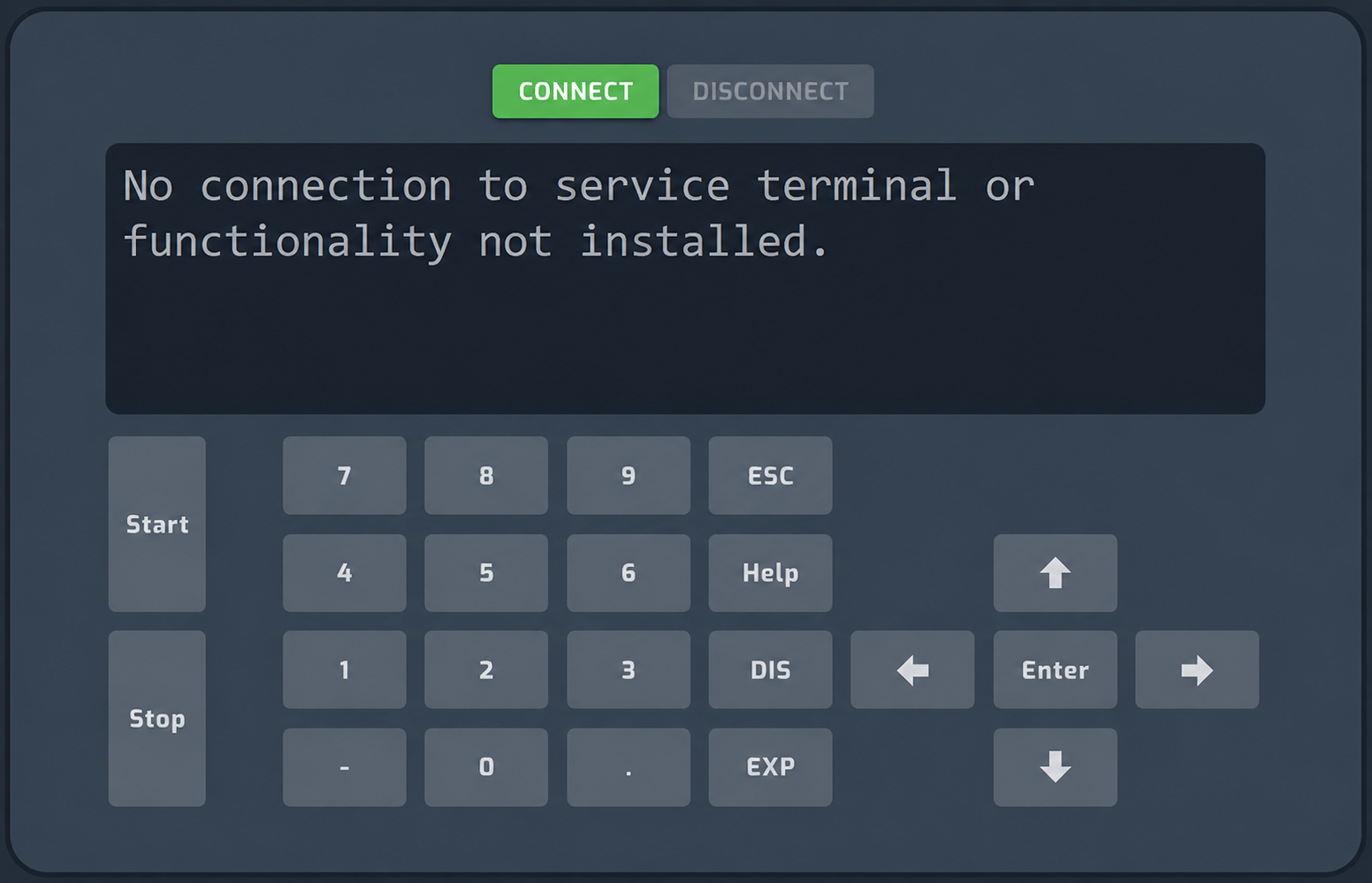
The OrbiSCADA connection to the terminal is established when the terminal display updates. The timing of this update depends on the controller type and the terminal menu structure. When the connection is established, the terminal will display the screen where the last user left it.
Please note: if the last user left the terminal on a static screen, where no values are updating continuously, such as a production value or timestamp, the OrbiSCADA connection is not established until the controller updates that screen in the background. In some cases, this may take several minutes. For example, this can occur with the Bonus 1000 WTC-2 controller.
Possible workarounds include:
- Click another terminal button directly after clicking Connect, for example an arrow button. This forces the terminal display to update, and the OrbiSCADA connection will then be established following that update.
- Leave the terminal on a screen that contains at least one value that updates continuously.
Delays after connection is established
When connection is established, the responsiveness of the terminal may vary depending on the overall connection quality. On slower connections, there may be a noticeable delay between user input and what is displayed on the screen. However, as long as the terminal is connected, it will respond to input. When entering values, it is not necessary to wait for each digit to appear before typing the next. Instead, enter the full sequence, for example a complete value or password, and then wait for the response. This approach can help reduce the total waiting time.
Multi-user access and interaction
Multiple users can connect to the terminal at the same time. The interface is shared, meaning all connected users will see the same screen and any actions performed in real time. Control of the interface is effectively shared on a first-interaction basis. If one user is actively navigating or entering values, other connected users will see these actions live. If another user begins interacting, control will shift accordingly. To avoid unintended changes or conflicts, it is recommended that users coordinate access when performing actions in the terminal.
Logging
Please note that actions performed via the remote terminal are not logged in the OrbiSCADA activity log. This includes parameter changes and other configuration updates made through the terminal interface.
Disconnecting from the terminal
Remember to disconnect from the terminal by clicking the Disconnect button when you are done using it. The terminal connection is automatically disconnected after a period of inactivity. The exact timeout period depends on the controller type and may range from around 30 seconds to several minutes.
Please note that on some controller types, historical data logging may be disabled while the remote terminal is active. To avoid interruptions to historical data logging, always disconnect when you have finished using the terminal.
Was this article helpful?
That’s Great!
Thank you for your feedback
Sorry! We couldn't be helpful
Thank you for your feedback
Feedback sent
We appreciate your effort and will try to fix the article